The Blaxtair Origin user interface consists of several modes available for the user:
-
Configuration
-
Driver mode
-
Backup / Update
-
Blaxtair information
There are two ways to make an update via a USB flash drive
-
Manual USB updating (you need to plug in the USB key and to go on the configurator in order to launch the update)
-
Automatic USB updating (the update start as soon as the USB key is plugged)
This process works with a software release min. v1.0.5 and the future versions
1 - Format the USB flash drive
Formost, to update your Blaxtair Origin processing unit via a USB flash drive, you must format the USB flash drive in FAT32. It will allow the processing unit to detect it.
Click on the following link to access the step-by-step guide
-
How to format a USB flash drive to use with a Blaxtair Origin? < TO BE MODIFIED
2 - Download the software release on the USB flash drive
-
1 - Foremost verify the S/N of the PU 0-07_ _-xxxx-xxxx.
-
If _ _ < 14 (0-0711-xxxx-xxxx or 0-0712-xxxx-xxxx...) so you need a remote intervention from the hotline@blaxtair.com
-
If _ _ ≥ 14 (0-0714-xxxx-xxxx ) so you can go further
-
-
2 - Download or ask to your Blaxtair contact (or hotline@blaxtair.com) the latest version of Blaxtair Origin software on an external PC
-
2.1 - For Manual USB updating
-
download the: "*.mender" file of the software version
-
-
2.2 - For Automatic USB updating
-
download the: "*.mender" file of the software version
-
download the: "auto.ini" file dedicated to the software version
-
if the auto.ini file is not available you can create it:
-
Open a text editor and copy/paste the following code into the file. Replace the software release file name in taskswith the *.mender file name
Shell
Shell
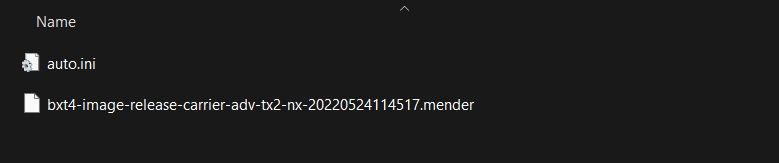
Bash[fileManager]action=importtasks="bxt4-image-release-carrier-adv-tx2-nx-20220524114517.mender"-
Save the file as "auto.ini"
-
-
-
-
-
3 - Copy the *.mender" and auto.ini (for automatic update) files directly at the root of the USB Flash Drive (no directory)
-
4 - Properly eject the USB Flash drive from your PC
3 - Update your Blaxtair Origin processing unit
-
1 - Turn off the processing unit
-
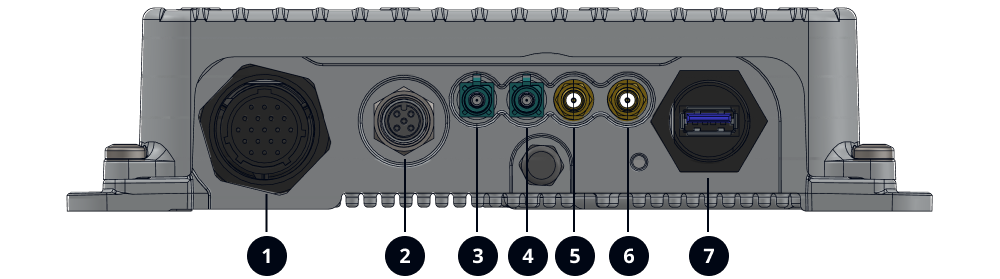
2 - Remove everything connected to the USB connector (Connector 7)
-
3 - Turn on the processing unit
-
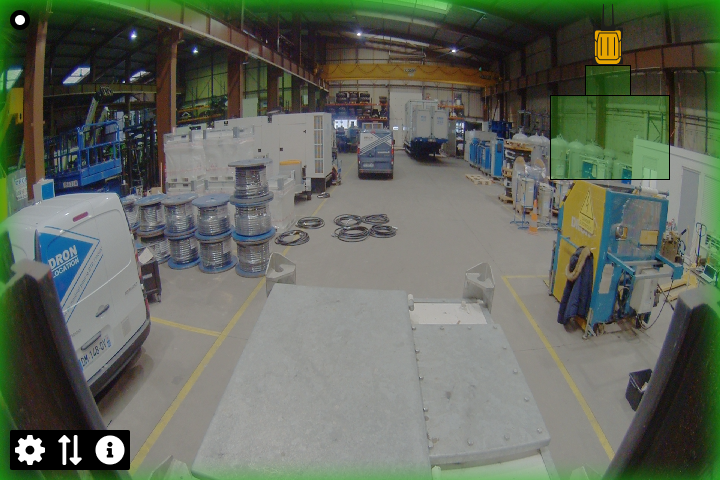
4 - Wait for the video and the green overlay to appear
Important otherwise the USB Flash drive will not be taken into account
-
5 - Plug the USB Flash Drive into the processing unit (Connector 7)
Important if you chose the Automatic USB updating, the update will be automatically lauched
-
6 - The following screen appears on the Blaxtair Origin display
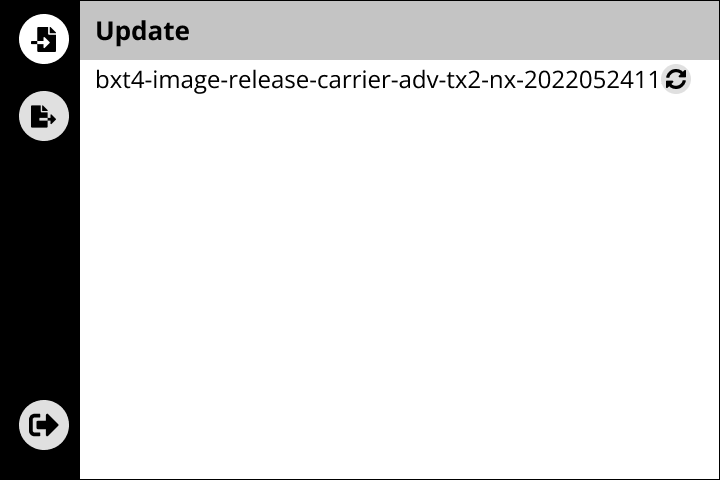
-
7 - After a few minutes, the processing unit finishes the update and reboots by itself.
-
8 - After the reboot, the processing unit is updated.
-
9 - Wait for the video and the green overlay to appear, you can disconnect the USB Flash Drive
Important if a message is displayed on the screen read it before to disconnect the USB flash drive